This article show the steps to take to create a RAID1 configuration in server 2012.
1. Restart your PC. During the reboot you must press CTRL + C to access the Raid controller settings. I have attached a recording where you can see this line appear at 32 seconds.
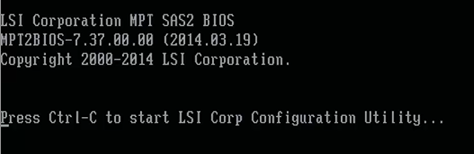
2. Adding the RAID1 configuration
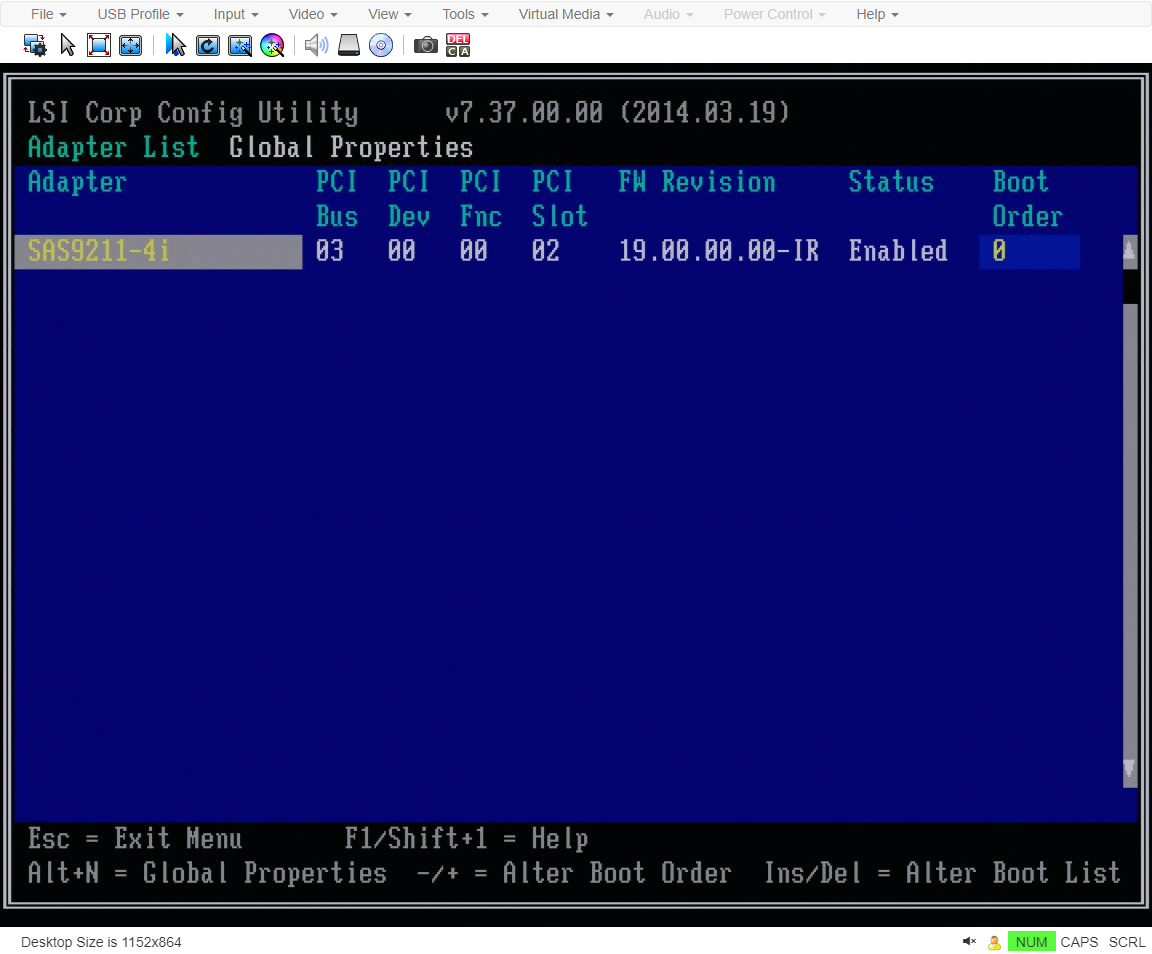
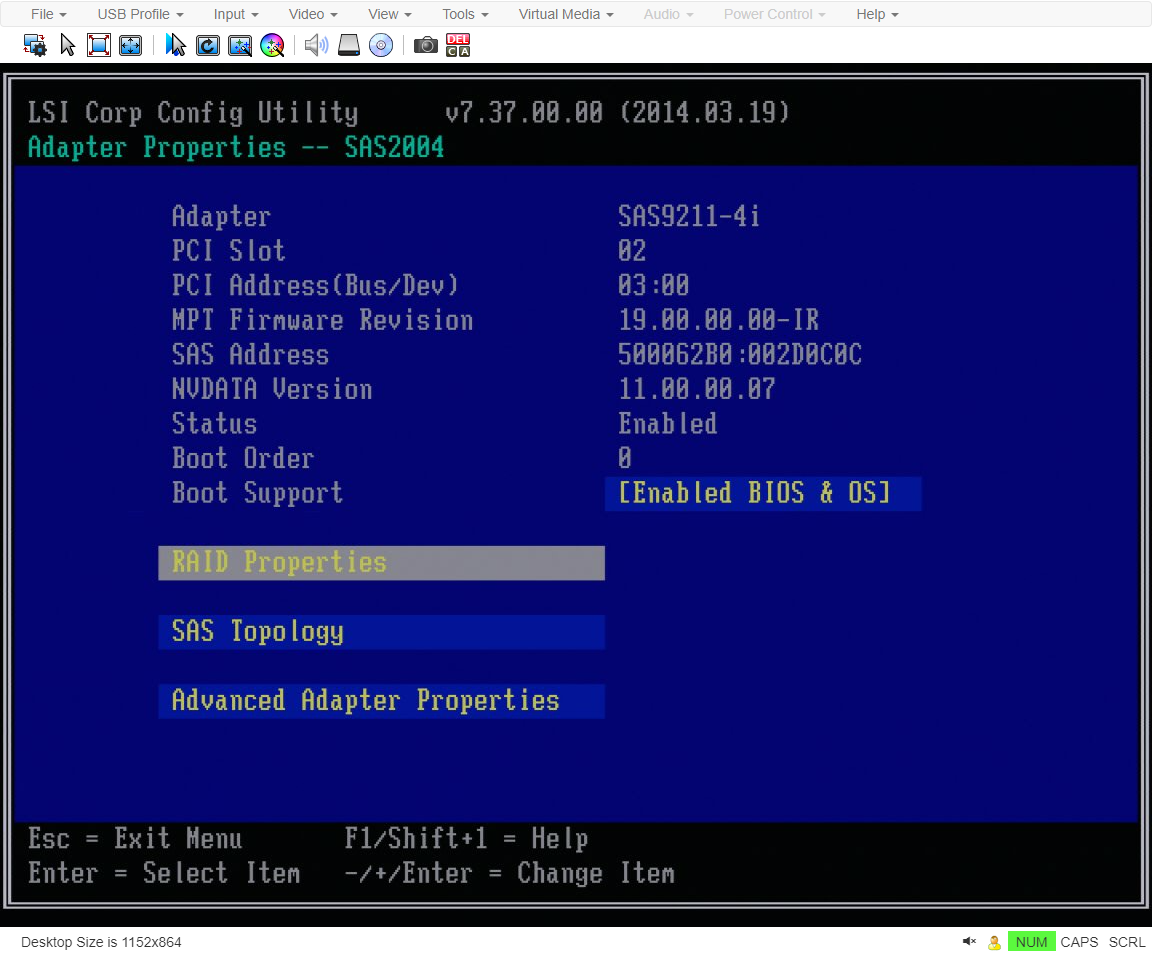
2.1 Normally the first screen is the following, the raid controller. If you don't have this screen, you may not have pressed CTRL + C quickly enough
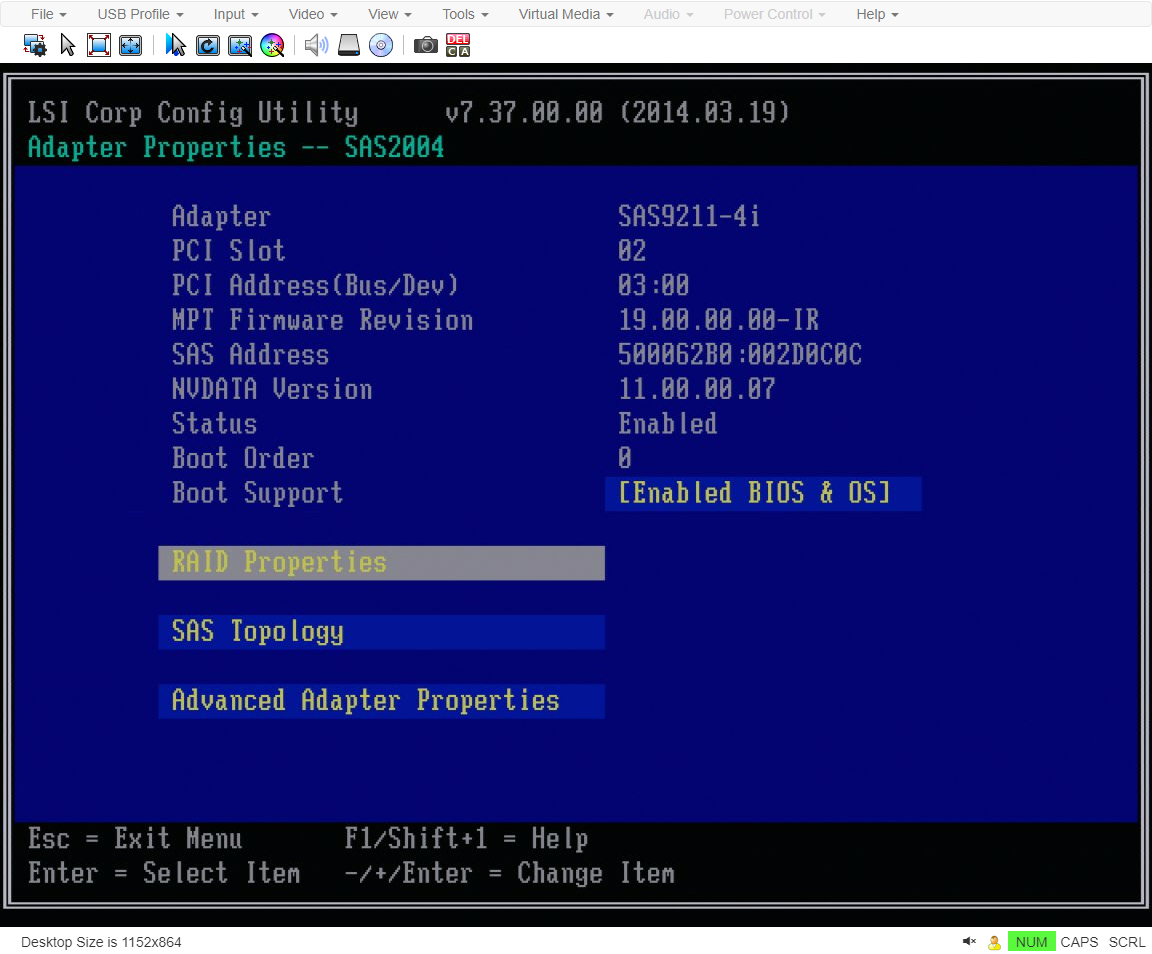
2.2 Click on 'Raid Properties'
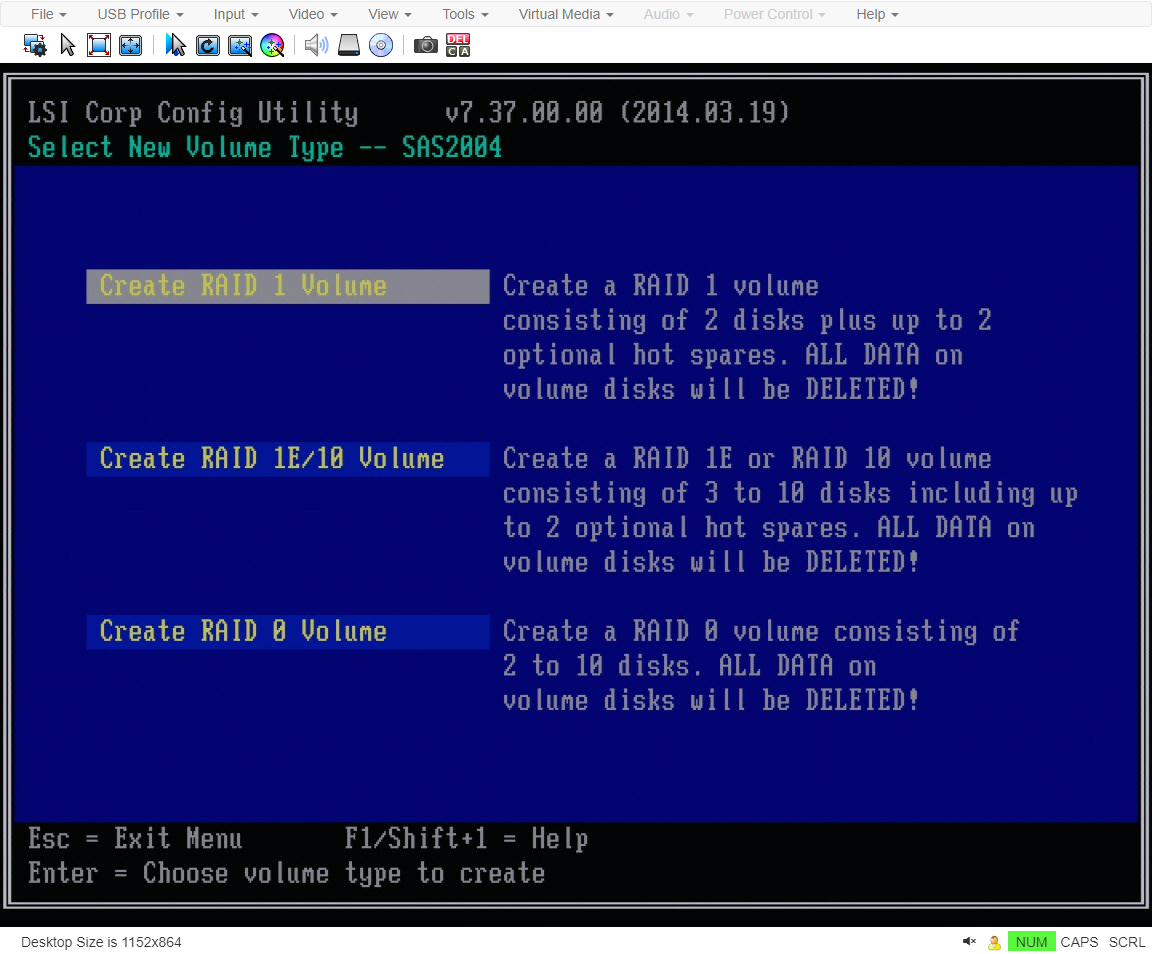
2.3 Create Raid 1 Volume
2.4 Choose for each disk 'YES' and click on 'C' to create the volume.
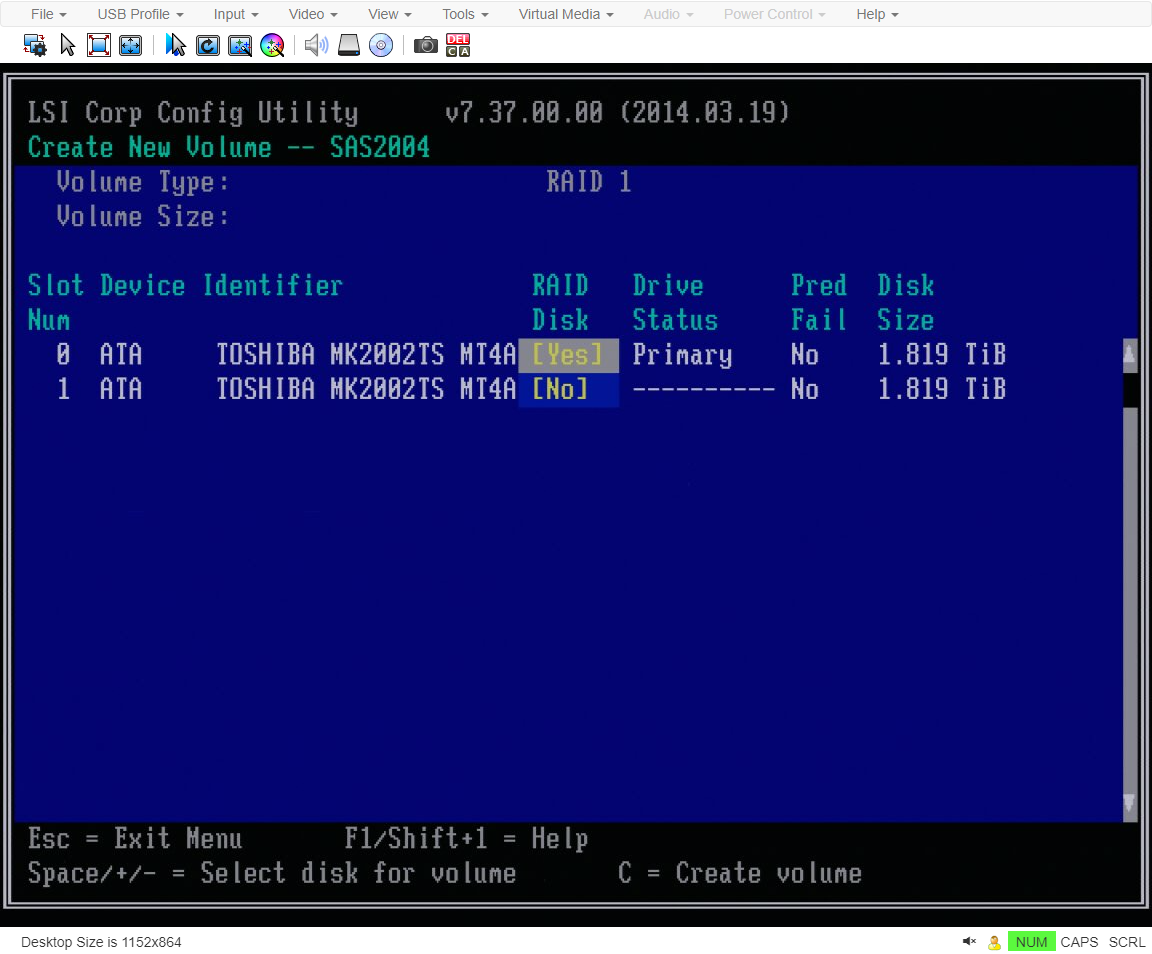
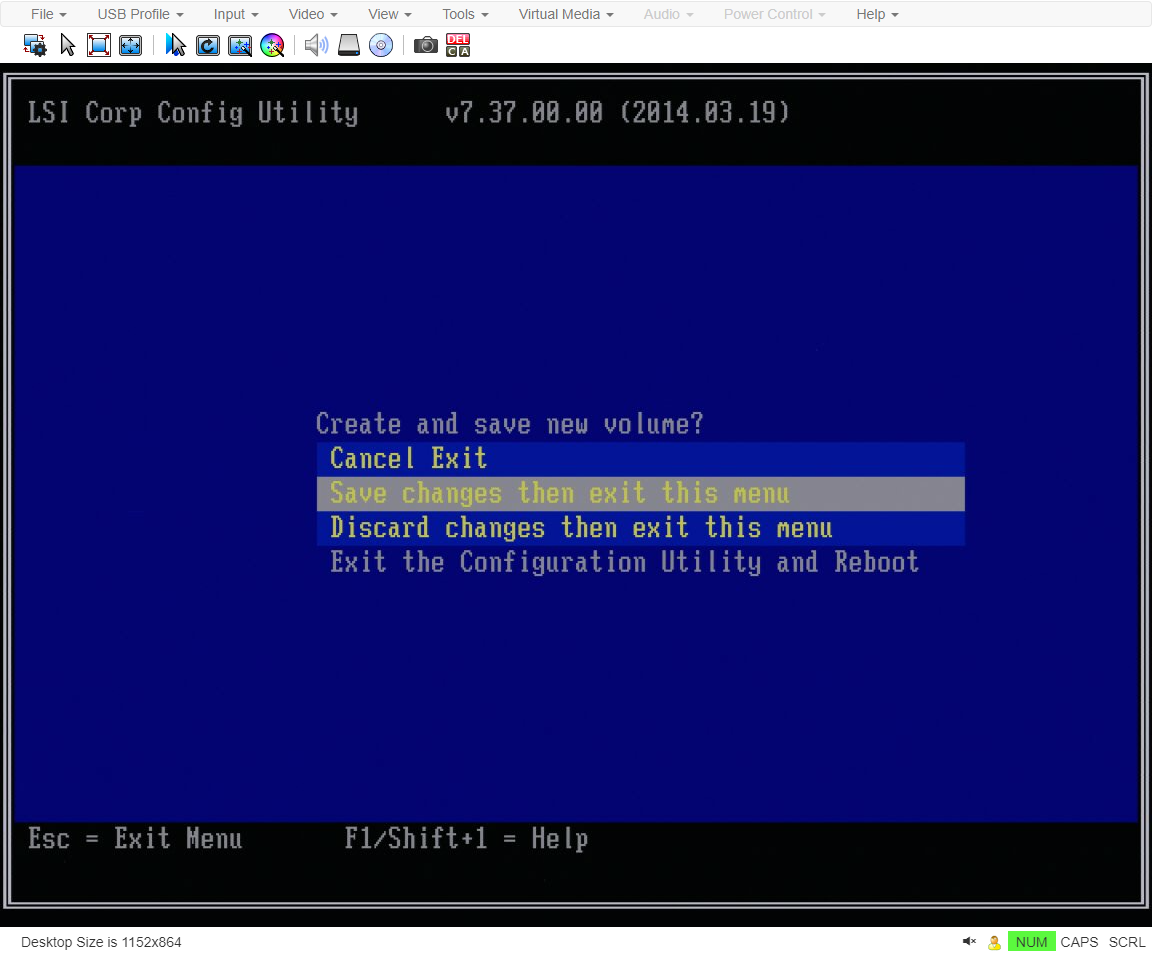
2.5 Click Esc (exit) and choose to save the changes
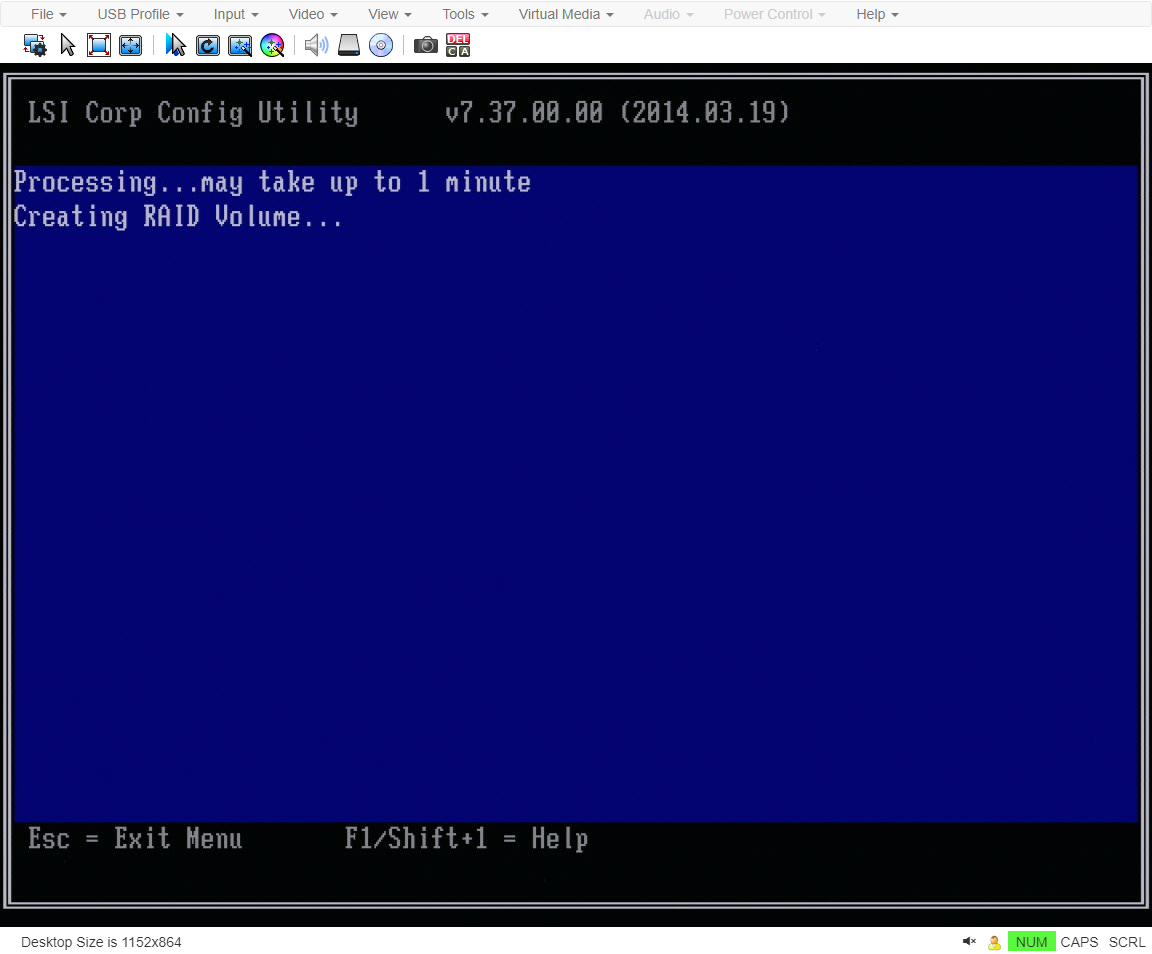
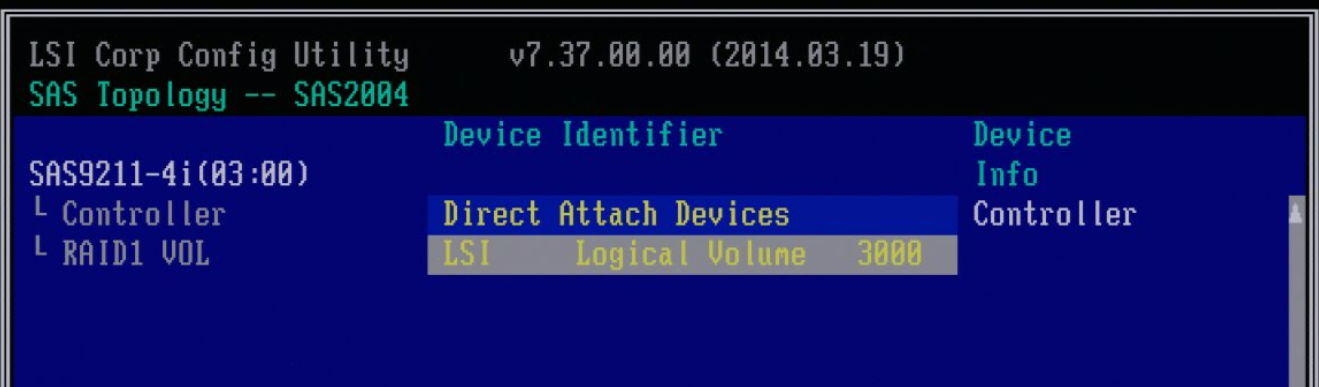
2.6 This will show you the following screen:
3. Verifying the RAID configuration
Now that the RAID is configured you can check wether or not the configuration was succesfull.
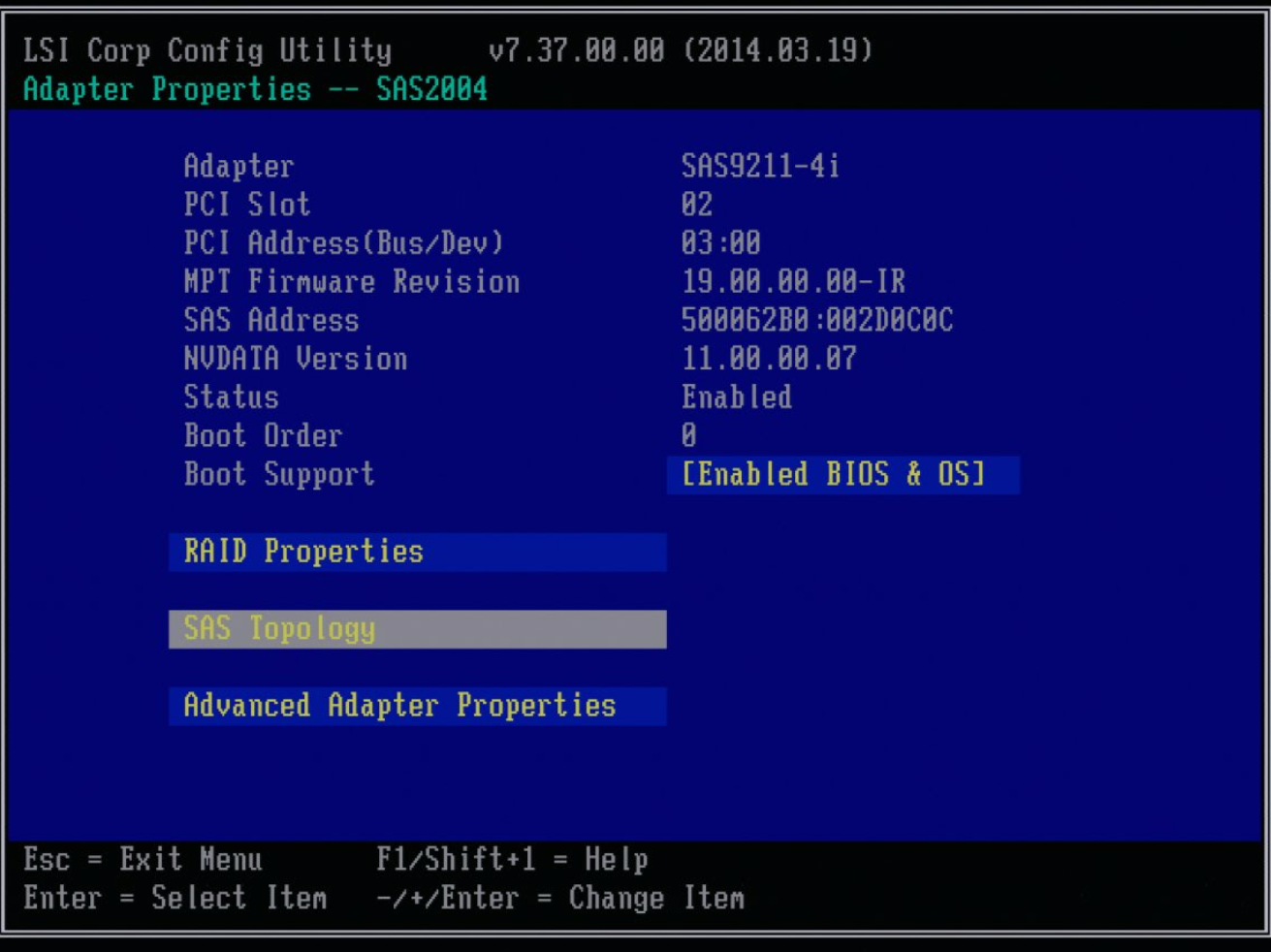
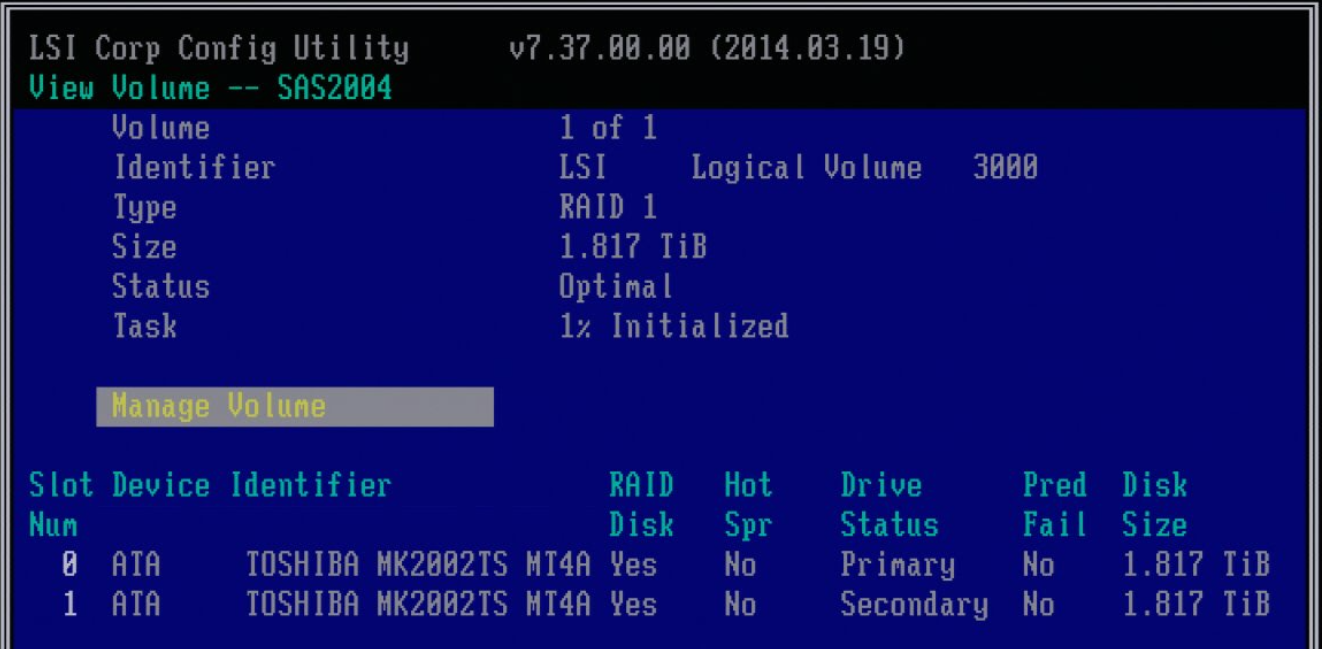
To check the RAID configuration you can click on 'SAS Topology' and then on 'LSI Logical Volume 3000'. This will give you the disks that are included in the RAID config.
4. Deleting the RAID configuration
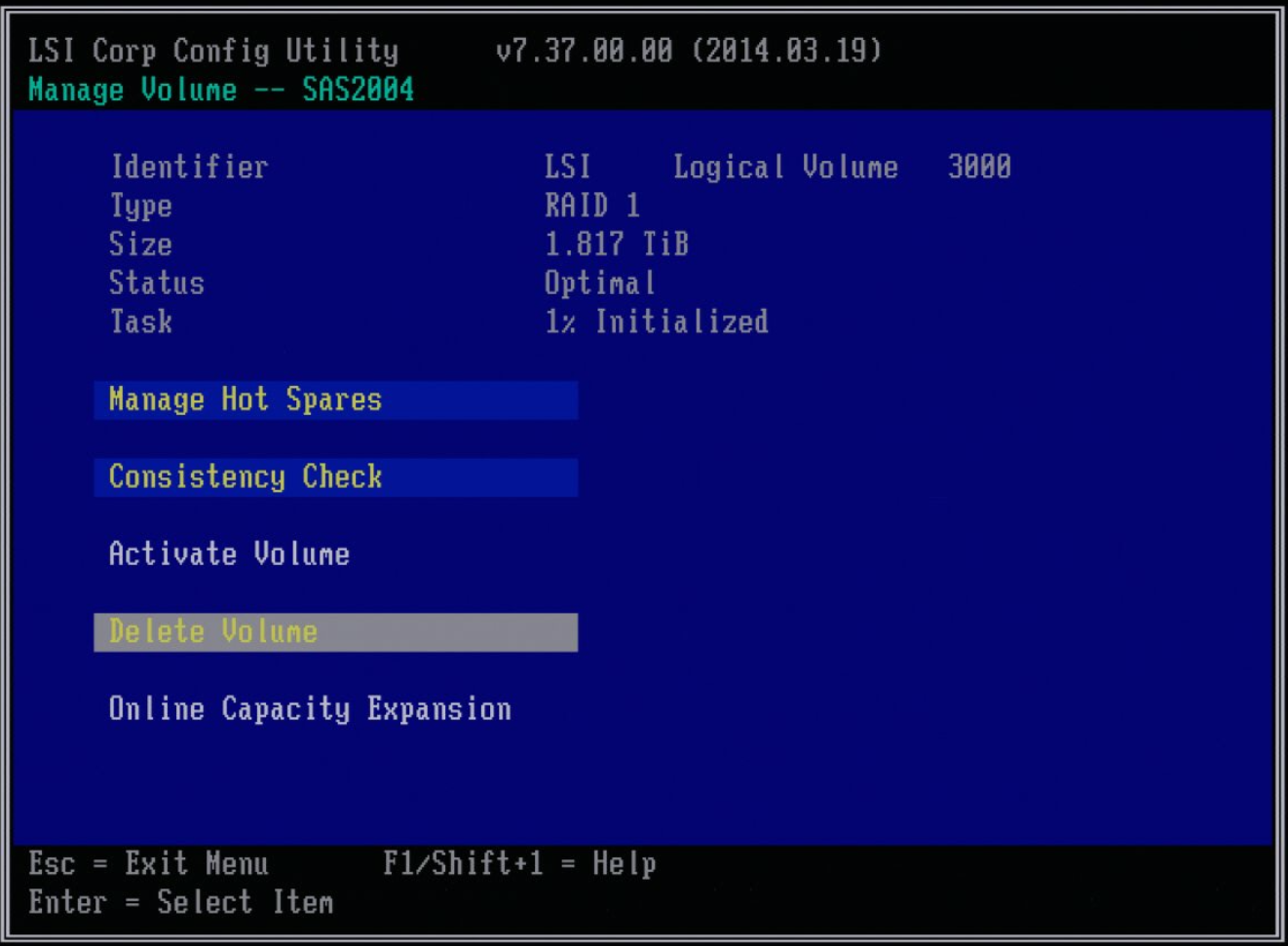
If you would have made a mistake or just want to delete the RAID configuration, you can take the following steps.
Click on 'RAID properties' > 'Manage Volume' > 'Delete Volume'.
Was this article helpful?
That’s Great!
Thank you for your feedback
Sorry! We couldn't be helpful
Thank you for your feedback
Feedback sent
We appreciate your effort and will try to fix the article